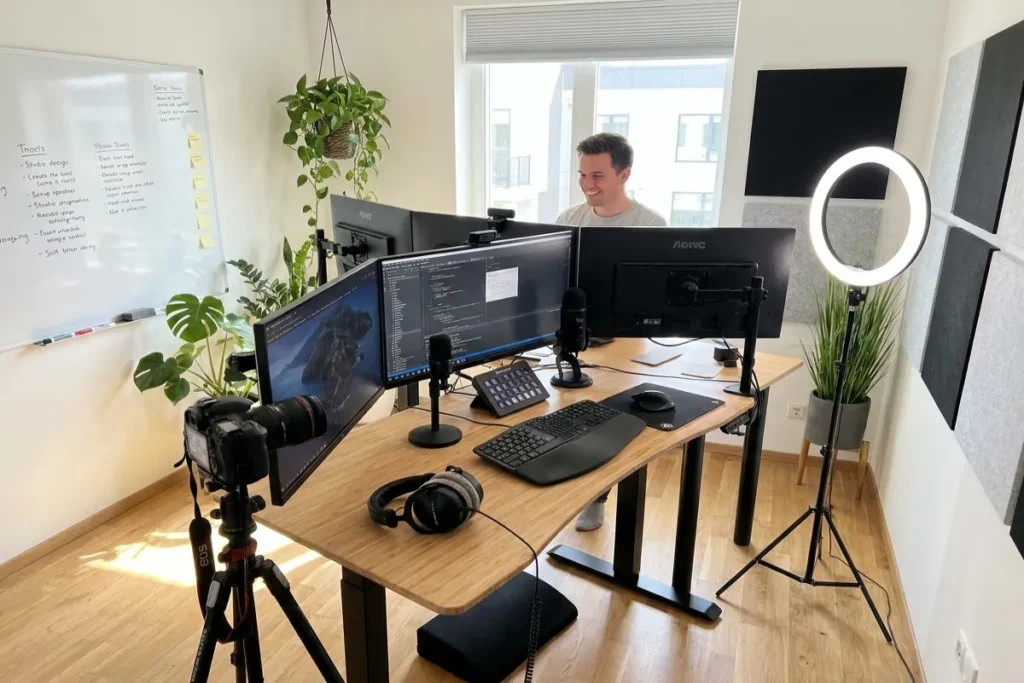
Are you tired of finishing your workday with a stiff neck, a strained lower back, and the lingering frustration of a cluttered, inefficient workspace? In the fast-paced digital landscape of 2026, working off a cramped laptop screen at a static dining table simply doesn’t cut it anymore. Whether you are a video editor rendering 4K footage, a software developer managing complex codebases, or a digital marketer juggling analytics and creative assets, your environment dictates your output. You need a workstation that adapts to your body and your workflow. Investing in a Professional Multi-Monitor Standing Desk Setup for Productivity & Content Creation is not just an aesthetic upgrade—it is a mandatory shift for anyone serious about protecting their physical health while maximizing their daily output.
In this comprehensive guide, we will break down everything you need to know to build the ultimate dynamic workstation. From selecting the right heavy-duty frame capable of lifting multiple displays without wobbling, to mastering the art of invisible cable management, we will provide you with the exact blueprints to transform your office. Get ready to elevate your creative process and reclaim your energy.
The Ultimate Guide to the 48 Best Male Home Office Ideas for 2026
Table of Contents
Why a Dynamic, Multi-Screen Environment is Non-Negotiable in 2026
The shift toward remote work and independent content creation has fundamentally changed how we view home offices. The days of basic, one-size-fits-all desks are gone. Today, a modern creator’s workspace must be an ergonomic command center.
The Ergonomic and Health Imperative
Sitting for eight to ten hours a day is a well-documented health hazard, contributing to cardiovascular issues and chronic lumbar pain. Standing desks solve this by allowing you to transition between sitting and standing, which can burn up to twice as many calories and significantly improve blood circulation. However, if your screens are positioned incorrectly, standing will simply trade lower back pain for severe neck and shoulder strain. A properly calibrated Professional Multi-Monitor Standing Desk Setup for Productivity & Content Creation ensures that your spine remains neutral and your eyes remain level with your work, regardless of whether you are seated or standing.
Turbocharging Creator Workflows
For content creators, screen real estate is as valuable as physical desk space. Video editing requires a timeline, a preview window, asset bins, and audio mixers. Attempting to cram these into a single 24-inch display forces you to constantly minimize windows, breaking your creative flow. Adding a second or third monitor has been proven to boost productivity by up to 40%, as it allows for seamless multitasking. You can research on your left screen, write or edit on your center screen, and communicate with your team on the right.
The Foundation: Choosing the Right Standing Desk for Heavy Loads
A multi-monitor setup is heavy. When you combine the weight of two or three 27-inch or 32-inch displays, heavy-duty monitor arms, audio interfaces, a microphone boom arm, and a desktop PC, you are placing an immense load on your desk’s lifting mechanism. If you buy a cheap, single-motor desk, it will struggle to lift the weight and will wobble violently when extended to standing height.
Understanding Desk Width and Depth
When building a Professional Multi-Monitor Standing Desk Setup for Productivity & Content Creation, size is your first critical decision. Most ergonomic guides agree that depth matters just as much as width. A shallow desk (under 24 inches deep) will push large monitors dangerously close to your face, causing immense eye strain and forcing you to tilt your head back.
- The Depth Rule: Aim for a desk depth of at least 30 inches. This allows you to maintain the ergonomically recommended 20 to 30-inch viewing distance from your screens.
- The Width Rule: Two 24-inch monitors require an absolute minimum of 48 inches of desk width. However, if you are running dual 27-inch monitors, you need a minimum of 60 inches of width to prevent the screens from hanging over the edges or forcing your neck to rotate uncomfortably. For three monitors, a 72-inch wide desk is highly recommended.
Top 2026 Desk Recommendations
To support heavy creator setups, you need desks with robust weight capacities and structural stability.
- FlexiSpot E7 Pro: Widely regarded as one of the best overall choices for heavy monitors in 2026, the E7 Pro features a heavy-duty steel build and a dual-motor system capable of lifting up to 355 lbs smoothly. It is exceptionally stable even at full standing height, making it a favorite among streamers and editors.
- Desk Haus Peak Pro: For the absolute heaviest, zero-compromise setups, the Peak Pro is legendary. Powered by a four-motor system, it boasts a staggering 600 lb lifting capacity and nearly zero wobble at maximum height, ideal for traders or creators with massive ultra-wide configurations.
- Secretlab MAGNUS Pro: If you despise cable clutter, the MAGNUS Pro is a game-changer. It is specifically designed with an integrated, full-length cable management tray hidden in the back, making it the best standing desk for cable management on the market.
Perfecting Your Monitor Configuration and Layout
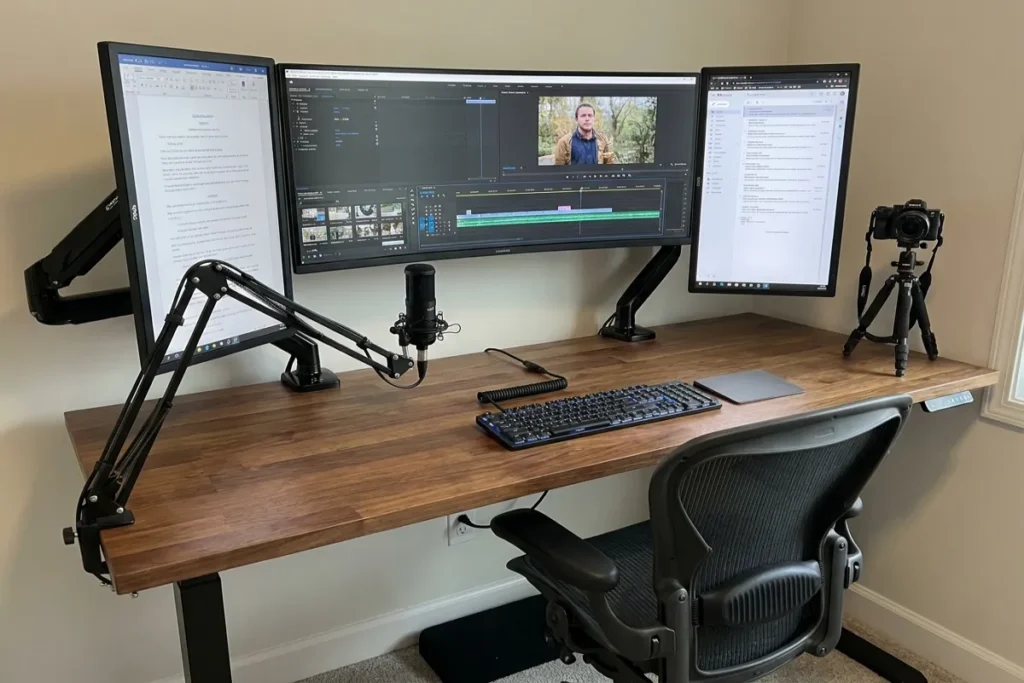
Once you have your heavy-duty desk, how you arrange your screens will make or break your ergonomic experience. Placing two monitors flat on their factory stands wastes desk space and prevents micro-adjustments.
Investing in Premium Monitor Arms
You must ditch the factory stands and invest in high-quality, gas-spring monitor arms. Monitor arms lift the displays off the desk surface, freeing up space underneath for audio interfaces, stream decks, or just a cleaner aesthetic. More importantly, they allow you to fine-tune the height, tilt, and depth of your screens independently. Make sure to purchase arms rated for the exact weight of your specific monitors; heavy 32-inch displays will cause cheap arms to sag over time.
Side-by-Side vs. Stacked Layouts
The right layout depends entirely on your specific content creation workflow.
- The Side-by-Side Setup: Best for writers, developers, and general multitaskers. In this setup, you should have one primary monitor directly in front of you, centered with your keyboard. The secondary monitor should be placed to the side and angled inward (like a slight V-shape) to reduce neck rotation. Never place the split between two monitors dead center in front of your face; this forces you to constantly look left and right, guaranteeing neck pain.
- The Stacked (Vertical) Setup: Increasingly popular among video editors and streamers in 2026. You place an ultrawide monitor at standard eye level for your video timeline, and mount a second monitor directly above it, tilted slightly downward. The top monitor acts as your full-screen video preview or your OBS (Open Broadcaster Software) stream chat. This requires minimal horizontal neck movement and keeps the most critical information within your peripheral vision.
Ergonomic Calibration Checklist
- Adjust your primary monitor so the top third of the screen is precisely at your eye level.
- Keep your screens roughly an arm’s length (20 to 30 inches) away from your face.
- Ensure that when you switch your desk from sitting to standing, the monitors do not vibrate or sag.
Taming the Chaos: Advanced Cable Management
A messy desk creates a messy mind. When you are managing two or three monitors, a desktop PC or MacBook hub, speakers, webcams, and lighting, you can easily end up with dozens of cables snaking across your workspace. Effective cable management is the hallmark of a professional setup.
The “Single Cable” Philosophy
In 2026, Thunderbolt 4 and Thunderbolt 5 hubs are mandatory for laptop-based creators. By mounting a high-bandwidth dock beneath your desk, you can plug all your monitors, audio gear, and ethernet cables into the dock. Then, a single Thunderbolt cable connects to your laptop. When you need to leave, you unplug one cable; when you return, one cable instantly wakes up your entire multi-monitor empire.
Actionable Cable Routing Tips
- Use an Under-Desk Tray: If you don’t have a specialized desk like the Secretlab MAGNUS Pro, purchase a heavy-duty wire basket tray and screw it into the underside of your desk near the back edge.
- Mount the Power Strip: Never leave your power strip on the floor. Use strong double-sided mounting tape or screws to attach the power strip directly beneath the desk, or place it inside the cable tray. This way, when the desk raises to standing height, only one power cable (from the power strip to the wall outlet) needs to move.
- Cable Sleeves and Velcro: Ditch plastic zip ties, which are a nightmare if you ever need to replace a mouse or monitor cable. Use reusable Velcro straps to group wires that travel the same path. Wrap cables running down the desk leg in a neoprene cable sleeve to disguise them completely.
Completing the Creator Hub: Essential Peripherals
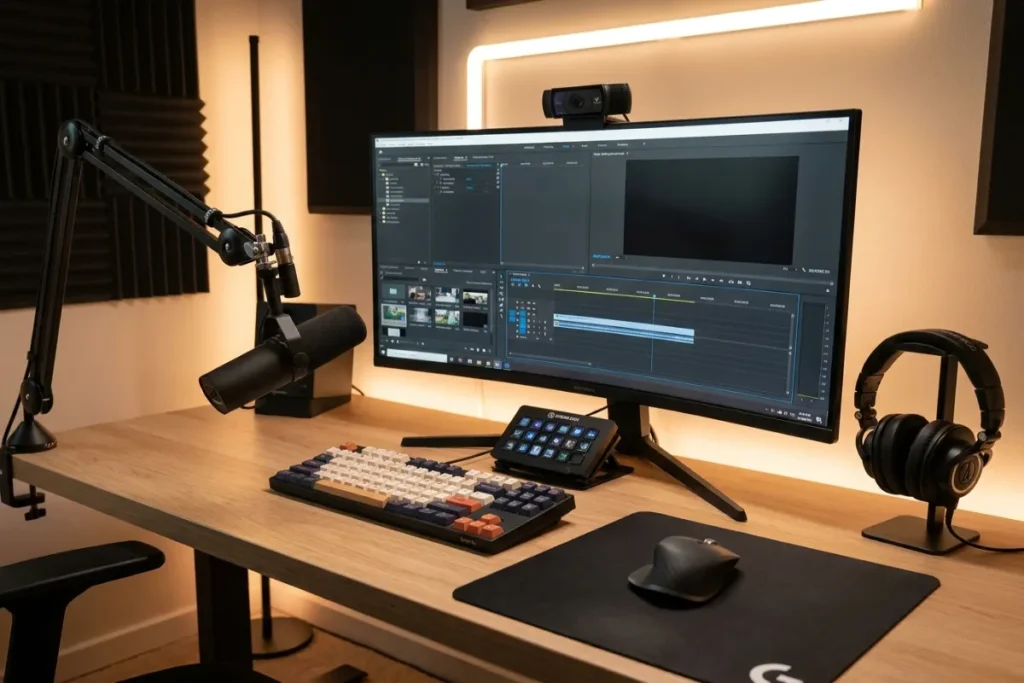
The desk and the monitors are the foundation of a Professional Multi-Monitor Standing Desk Setup for Productivity & Content Creation, but the peripherals bring the space to life and optimize it for high-end digital work.
Lighting the Workspace
Harsh overhead room lighting causes screen glare and eye fatigue. Instead, implement a layered lighting approach.
- Monitor Light Bars: These rest on top of your primary monitor and cast a precise, asymmetrical pool of light directly onto your keyboard and desk surface without hitting the screen or shining into your eyes. They are essential for late-night editing sessions.
- Key Lights: If you stream or take frequent video calls, clamp-mounted LED key lights on the rear edges of your desk provide soft, diffused lighting that flatters your face without cluttering your desktop.
Audio and Control Integration
Keep items you frequently interact with within an ergonomic arm’s reach.
- Macro Pads and Stream Decks: Position a customizable macro pad just above your keyboard. You can program this tool to switch scenes in OBS, instantly apply color grading LUTs in Premiere Pro, or run complex coding scripts with a single button press.
- Under-Desk Mounts: To preserve surface area, use under-desk mounts for your audio interface (like a Focusrite Scarlett) and headphone hangers. This keeps your essential audio dials close to your knee, freeing up the top of the desk for sketchpads, tablets, or notebooks.
Conclusion: Transform Your Work, Protect Your Health
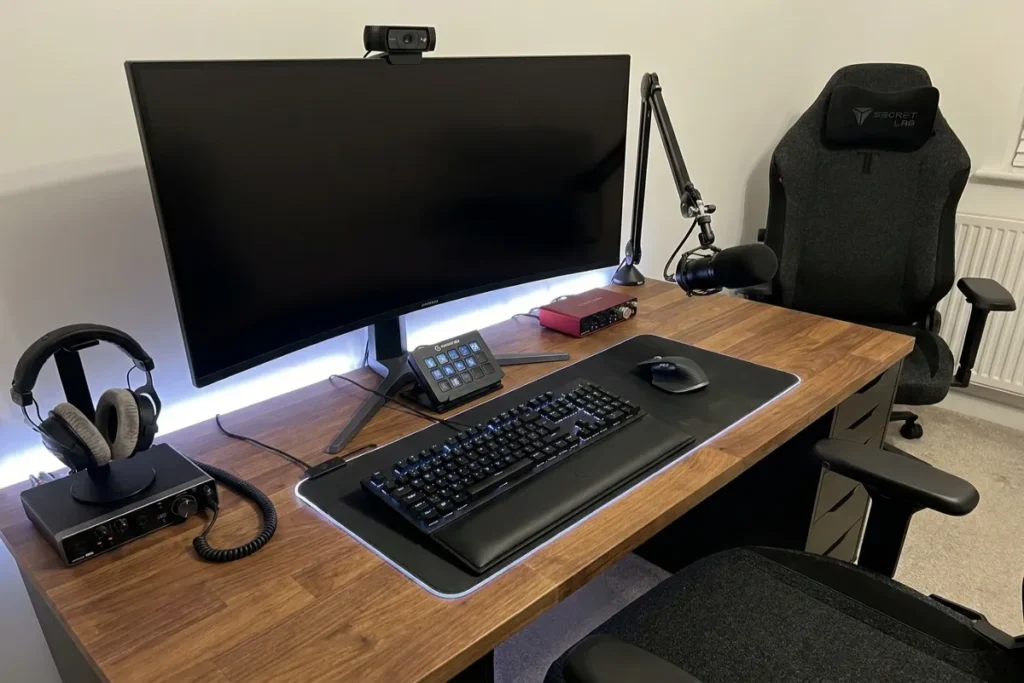
Building a dynamic, tech-forward workspace is one of the highest ROI investments a modern professional can make. Transitioning to a Professional Multi-Monitor Standing Desk Setup for Productivity & Content Creation does more than just make your office look like a futuristic command center—it actively protects your spinal health, preserves your vision, and removes the physical friction that slows down your creative output.
By starting with a robust, correctly sized desk frame like the FlexiSpot E7 Pro or Desk Haus Peak Pro, carefully planning your monitor layout with ergonomic gas-spring arms, and mercilessly eliminating cable clutter, you will create an environment that invites focus and inspires creativity. Take the time to measure your space, assess your workflow, and upgrade the tools that you use for thousands of hours a year.
Ready to take your tech and productivity gear to the next level? Head over to thetekworld.com for more exclusive reviews on 2026’s best ergonomic furniture, cutting-edge monitor setups, and expert strategies to dominate your daily workflow!
Frequently Asked Questions (FAQ)
1. Is it safe to use heavy monitor arms on a standing desk?
Yes, monitor arms are completely safe on standing desks, provided the desk has a sturdy core. Desks with solid wood, heavy bamboo, or thick, high-density MDF tops can easily support the clamping force of monitor arms. However, avoid clamping heavy dual-monitor arms onto cheap particleboard desks with hollow honeycomb cores, as the focused weight and leverage can cause the desk surface to crack or cave in.
2. How do I stop my monitors from shaking when I type in a standing position?
Monitor wobble is caused by two factors: a weak desk frame and loose monitor arms. To fix this, ensure you purchase a desk with dual or quad motors and thick steel legs (like the Uplift V2 or Desk Haus models) which minimize lateral sway. Secondly, tighten the tension joints on your monitor arms, and make sure your screens aren’t extended too far horizontally away from the arm’s base pole, which increases leverage and vibration.
3. What is the ideal height for my standing desk?
The ideal height varies strictly by your body mechanics. When standing, adjust the desk so that your elbows rest on the desktop (or your armrests/keyboard tray) at a perfect 90-degree angle while your shoulders are completely relaxed. You should not have to shrug your shoulders up to type, nor should you have to lean forward.
4. Can I run three monitors off a single laptop?
In 2026, yes, but it depends on your laptop’s internal architecture and your docking station. Modern MacBooks equipped with M3/M4 Max chips or Windows laptops with dedicated GPUs and Thunderbolt 4/5 ports can easily push three external displays. You will need a premium Thunderbolt docking station to ensure enough bandwidth is provided for high resolutions (like 4K) at 60Hz or 120Hz across all three screens.
5. How much width do I actually need for a dual 27-inch setup?
To comfortably fit two 27-inch monitors without extreme angles, you need a desk that is at least 60 inches wide. Squeezing them onto a 48-inch desk is technically possible with monitor arms, but it will force the screens into a tight “V” shape, placing them uncomfortably close to your face and pushing your speakers or other peripherals off the edge.

Comments