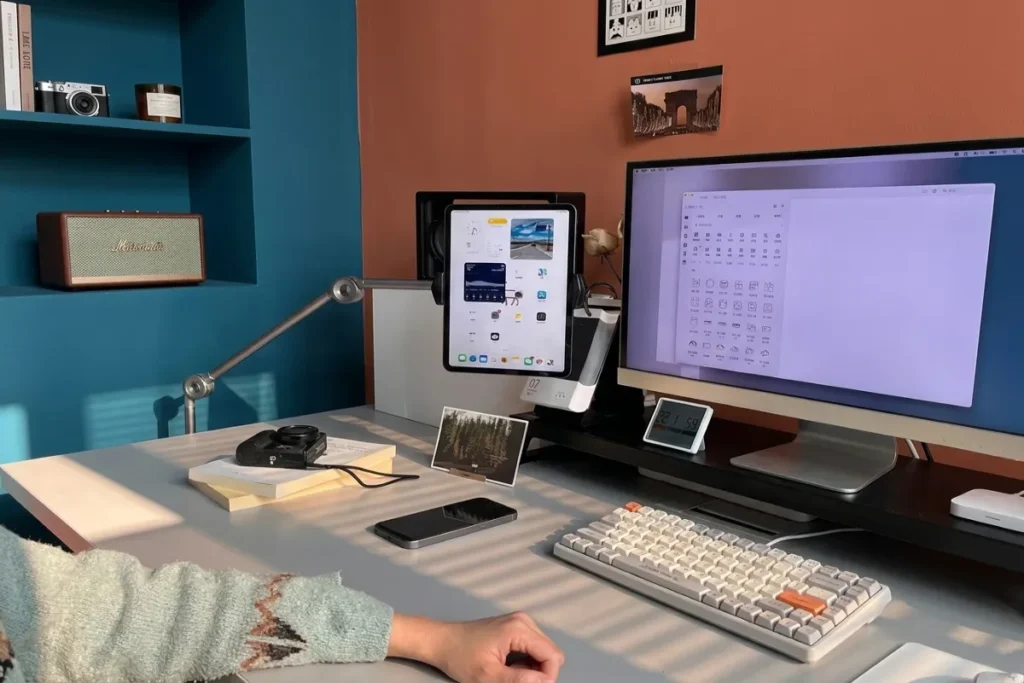
The lines between our professional lives and personal downtime have permanently blurred. Millions of people now spend their 9-to-5 managing spreadsheets, joining video calls, and writing code, only to spend their 5-to-9 streaming, gaming, or producing music—all at the exact same desk. The problem? Most desk setups are built for only one of those realities. They are either painfully corporate or excessively flashy with blinding RGB lights.
If you are constantly unplugging your work laptop to plug in your gaming rig, or moving a bulky microphone out of the way just to type an email, you are experiencing setup friction. You need a space that seamlessly transitions between professional focus and high-performance gaming. Finding the Best Desk Upgrade for Work & Play! isn’t about buying a single magic product; it is about investing in smart, hybrid gear that serves both masters perfectly.
In this comprehensive guide, we will explore the essential upgrades that bridge the gap between productivity and entertainment, helping you build the ultimate hybrid command center.
DeskBoard Buddy – Black / Wireless Charger: The Ultimate Workspace Upgrade
Table of Contents
1. The Monitor Arm: The Ultimate Space Saver
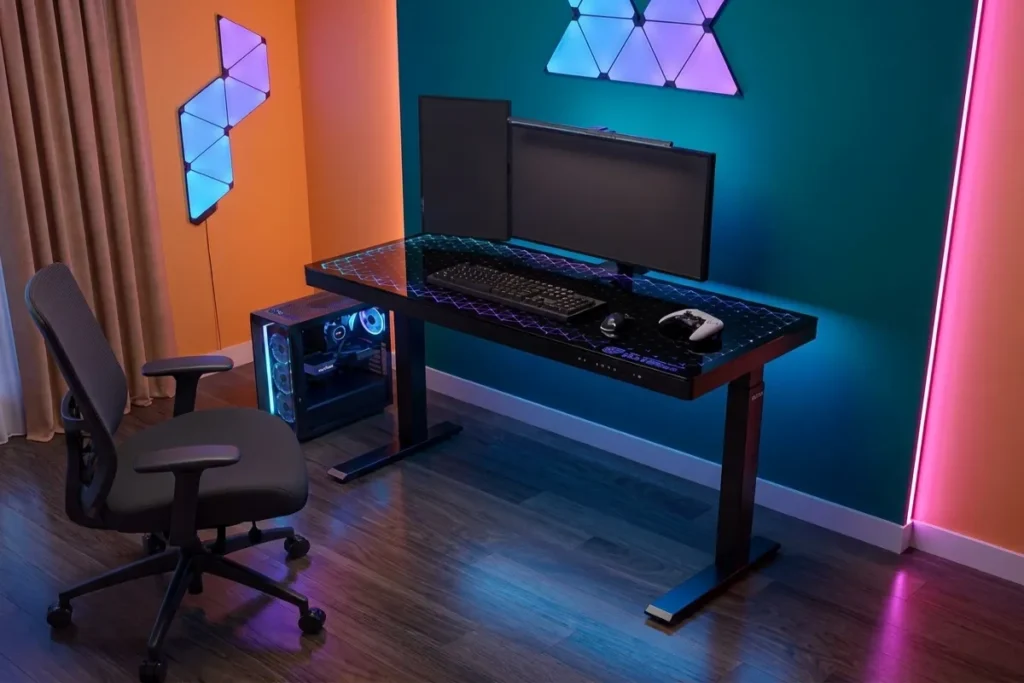
When evaluating the Best Desk Upgrade for Work & Play!, reclaiming your physical desk space is priority number one. Factory monitor stands are notoriously bulky. They eat up valuable real estate where your keyboard, mouse, or notebook should go. If you are using two monitors—one for work and a high-refresh-rate panel for gaming—those stands will suffocate your desk.
The Power of Gas-Spring Mounts
Investing in a heavy-duty, dual gas-spring monitor arm is transformative. Clamping this to the back of your desk allows both of your screens to float effortlessly above your workspace. This immediate space reclamation gives you the room to push your keyboard back when reading documents, or pull it close when gaming.
Effortless Repositioning
The true magic of a gas-spring arm lies in its flexibility. During the workday, you might want your primary screen front and center with a secondary screen vertical (portrait mode) for reading code or Slack messages. But when it’s time to game, you can effortlessly pull your 1440p gaming monitor to the center and push the work monitor out of the way. You simply cannot do this with factory stands.
2. The Smart KVM Switch and Docking Station
The biggest friction point in any hybrid setup is the transition. Switching from a company-issued MacBook to a custom Windows gaming PC usually involves a rat’s nest of cables. You have to unplug your keyboard, mouse, webcam, and headset from one machine and plug them into the other.
One Button to Rule Them All
A hardware KVM (Keyboard, Video, Mouse) switch is arguably the single most functional investment you can make. A premium KVM switch allows you to plug all your peripherals into a single hub. This hub then connects to both your work laptop and your gaming PC.
With the press of a single button, your monitors, keyboard, mouse, and audio instantly switch control from your work machine to your gaming rig.
The Modern Thunderbolt Solution
If you want to keep things even cleaner, look for monitors with built-in KVM functionality or use a high-end Thunderbolt 4 docking station. Mount the dock under your desk. You will only ever need to plug one USB-C cable into your work laptop to charge it, connect to your monitors, and access your peripherals. When the workday ends, just unplug that single cable.
3. The 75% Wireless Mechanical Keyboard
Your keyboard is your primary physical connection to your digital world. A membrane office keyboard feels terrible for gaming, and a massive, wired gaming keyboard takes up too much room and looks unprofessional on Zoom calls.
The Sweet Spot in Layouts
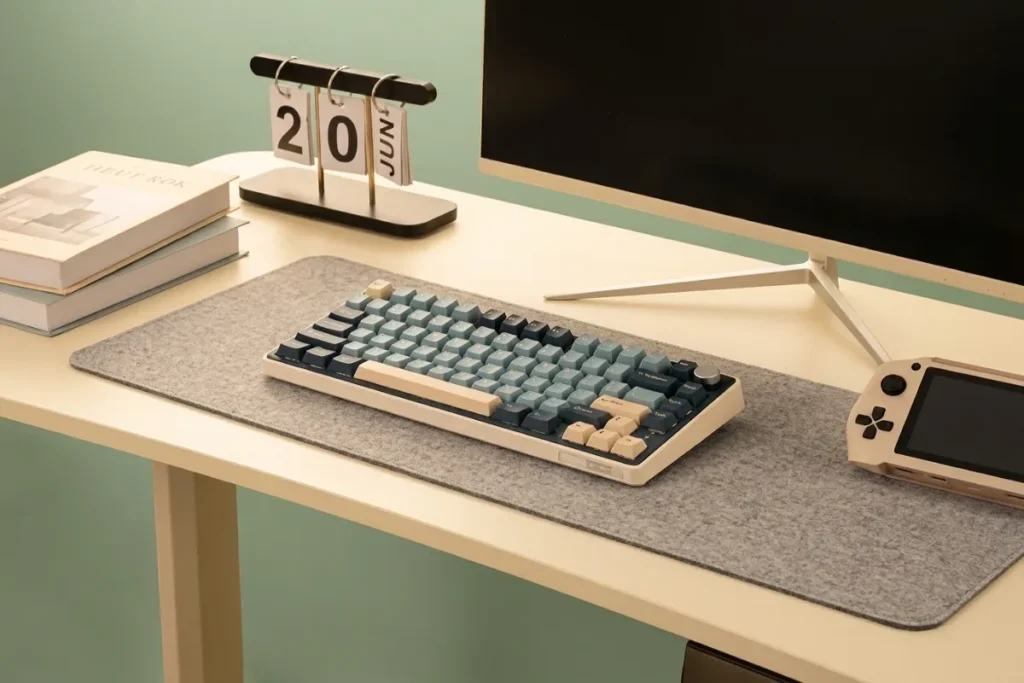
The 75% keyboard layout is the golden mean for hybrid users. It retains the essential F-keys (crucial for productivity shortcuts and gaming macros) and the arrow keys, but it chops off the bulky number pad. This smaller footprint brings your mouse closer to your body’s center line, drastically improving your shoulder ergonomics for both long workdays and marathon gaming sessions.
Tactile Switches for Both Worlds
Look for a wireless, hot-swappable mechanical keyboard. You want a board that can connect via a 2.4GHz USB dongle for zero-latency gaming, and Bluetooth for connecting to your work laptop or tablet.
For the switches, “Tactile” switches (like brown switches) are the best compromise. They provide a satisfying bump for accurate typing during the workday, but aren’t overly loud, meaning you won’t annoy your coworkers on a call or your teammates over Discord.
4. Hybrid Lighting: From Focus to Atmosphere
Lighting dictates the mood of your room. Harsh overhead lights kill the gaming vibe, but working in the dark causes severe eye strain. The Best Desk Upgrade for Work & Play! often involves mastering your lighting architecture so it can shift moods with you.
The Screen-Mounted Light Bar
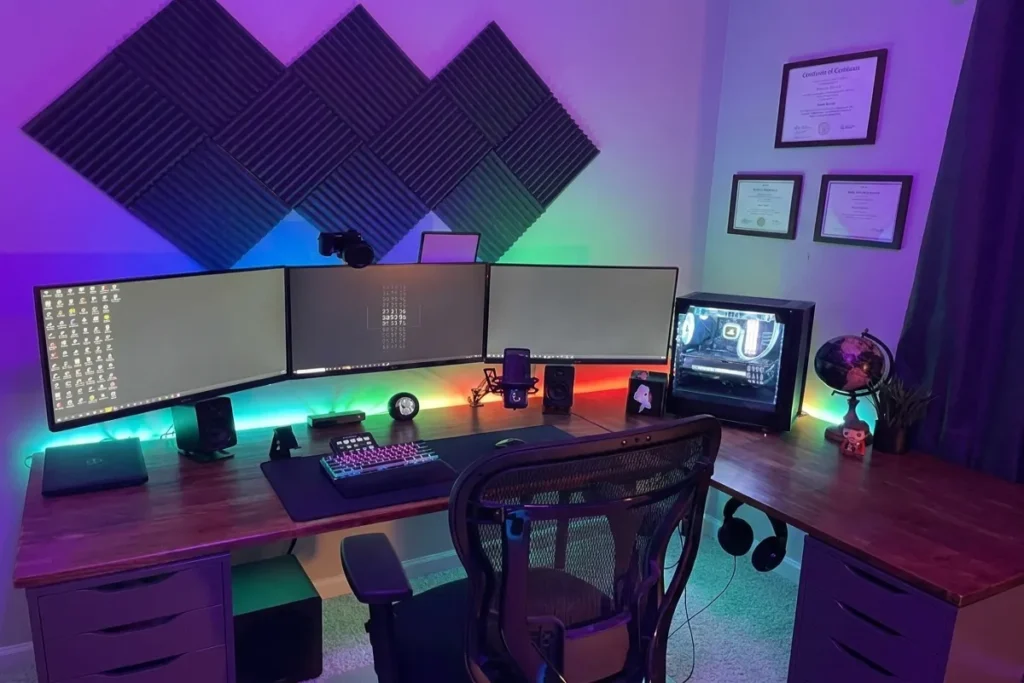
A monitor light bar is essential for productivity. It clips onto the top of your monitor and casts a precise, asymmetrical beam of white or warm light onto your desk mat. It illuminates your keyboard and documents without causing glare on your screen. During the workday, this focused light keeps you alert and productive.
Subtle Bias and Ambient Lighting
When the workday ends, turn off the light bar and let your ambient lighting take over. Install smart LED strips behind your monitors or along the back edge of your desk (known as bias lighting). During work, set these to a soft, warm white to reduce eye fatigue. When you boot up a game, you can switch them to a deep purple, aggressive red, or cool blue to instantly change the psychology of the room from a corporate office to an entertainment battle station.
5. The Ergonomic Foundation: Seating and Surfaces
You can have the best tech in the world, but if your back hurts after four hours, your setup is a failure. Hybrid setups demand furniture that looks mature but performs like athletic gear.
The Death of the “Racing” Chair
In 2026, the trend has firmly moved away from brightly colored, bucket-seat gaming chairs. They often lack proper lumbar support and look wildly out of place on a professional video call. Instead, opt for a high-end ergonomic mesh chair. Brands that focus on 24/7 ergonomic support offer chairs in all-black that breathe well during intense gaming sessions and provide the posture support necessary for an 8-hour workday.
The Sit-Stand Dynamic
A dual-motor electric standing desk is no longer a luxury; it is a baseline requirement for a healthy workspace. Look for a desk with a thick, solid wood top (like walnut or oak) rather than carbon-fiber textures. A wooden top looks beautiful and professional during the day. Pair it with an oversized, dark felt or leather desk mat to protect the surface and provide a smooth glide for your gaming mouse.
6. Audio Solutions: From Zoom to Warzone
Audio requirements for work and play are drastically different. Work requires clear vocal transmission, while gaming requires spatial audio and deep immersion.
The Desktop Microphone and IEM Combo
The bulky gamer headset is losing ground to a more modular, professional setup.
- The Microphone: Mount a dynamic USB/XLR microphone on a low-profile boom arm. Dynamic mics are excellent at rejecting background noise, meaning your coworkers won’t hear your dog barking, and your Discord friends won’t hear your keyboard clicking. When not in use, the low-profile arm pushes neatly under your monitor.
- The Audio: Instead of heavy over-ear headphones that cause fatigue and ruin your hair before a meeting, try In-Ear Monitors (IEMs). Popularized by musicians and professional esports players, IEMs offer incredible passive noise cancellation, pinpoint spatial audio for gaming, and look virtually invisible on video calls.
7. Cable Management: The Invisible Upgrade
You cannot have a peaceful work environment or a sleek gaming setup if there is a rat’s nest of black cables dangling by your feet. Cable management is the unsung hero of the hybrid desk.
The Under-Desk Ecosystem
Do not let a single cable touch the floor. Install a wide, metal cable management tray underneath your desk. Mount your power strips directly into this tray. Use neoprene sleeves to bundle the cables running from your PC to your monitors, and use adhesive clips to route smaller wires along the metal frame of the desk. A wireless-looking desk instantly elevates the perceived value of your entire setup.
Actionable Tips for Transitioning Your Space
Gear alone doesn’t solve the hybrid dilemma; habits do. To truly maximize the Best Desk Upgrade for Work & Play!, you need a transition ritual.
- The 5:00 PM Reset: When you finish work, take 60 seconds to clear away coffee mugs, put away notebooks, and push your work laptop out of sight (or into a vertical stand).
- The Lighting Shift: Use a smart home routine. Program a voice command like, “Switch to Game Mode,” which automatically turns off your monitor light bar, switches your bias lighting to a moody color, and activates your KVM switch.
- Hide the Clutter: Use a desk drawer or a stylish storage box on a nearby shelf to hide your work-specific items (pens, company security badges, planners) when gaming. Out of sight, out of mind.
Conclusion
Building a workspace that effortlessly handles high-level professional tasks and high-octane gaming is entirely possible in 2026. By investing in space-saving monitor arms, seamless KVM switches, versatile 75% keyboards, and adaptable lighting, you can eliminate the friction between your two worlds.
Remember, the goal is to create an environment where you don’t feel like you are gaming in a corporate cubicle, nor working inside a neon arcade. Balance is key.
Ready to start building your ultimate hybrid setup? Visit thetekworld.com for our latest reviews on the best Thunderbolt docks, ergonomic chairs, and monitor arms to complete your transformation.
Frequently Asked Questions (FAQ)
1. Is a KVM switch or a Thunderbolt dock better for a hybrid setup?
It depends on your hardware. If you have a desktop PC and a work laptop, a hardware KVM switch is the best way to share monitors and peripherals between them. If you only use laptops (e.g., a work MacBook and a personal gaming laptop), a Thunderbolt dock where you simply swap one cable is often cleaner and cheaper.
2. Can I game on a wireless mechanical keyboard without lag?
Absolutely. As long as you purchase a keyboard that features a 2.4GHz wireless USB receiver (often branded as “Lightspeed” or “HyperSpeed”), the latency is virtually identical to a wired connection and perfectly suited for competitive gaming. Avoid using standard Bluetooth for fast-paced games.
3. What is the best desk size for a dual-purpose setup?
For a hybrid setup, depth is just as important as width. Aim for a desk that is at least 60 inches wide and 30 inches deep. The 30-inch depth ensures you have enough room to push your keyboard forward to review physical documents without having your monitors right in your face.
4. Are monitor light bars distracting while gaming?
They can be, which is why they are primarily for productivity. Most users turn their monitor light bar on during the workday for focus and reading, and turn it off while gaming to allow the ambient/RGB bias lighting to create a more immersive atmosphere.

Comments